Get your space back.
Choose a folder and decide for every file: keep or delete. By swipe or arrow key. Deleted files only go to the trash.
GetSpace is a program for Mac and Windows and doesn’t run on phones. Send yourself the link and download it on your computer.
Email me the linkStart free · 50 files per day · No account
- Everything stays local
- Only to the trash
- No account, no tracking
- Mac and Windows
How it works
- 1
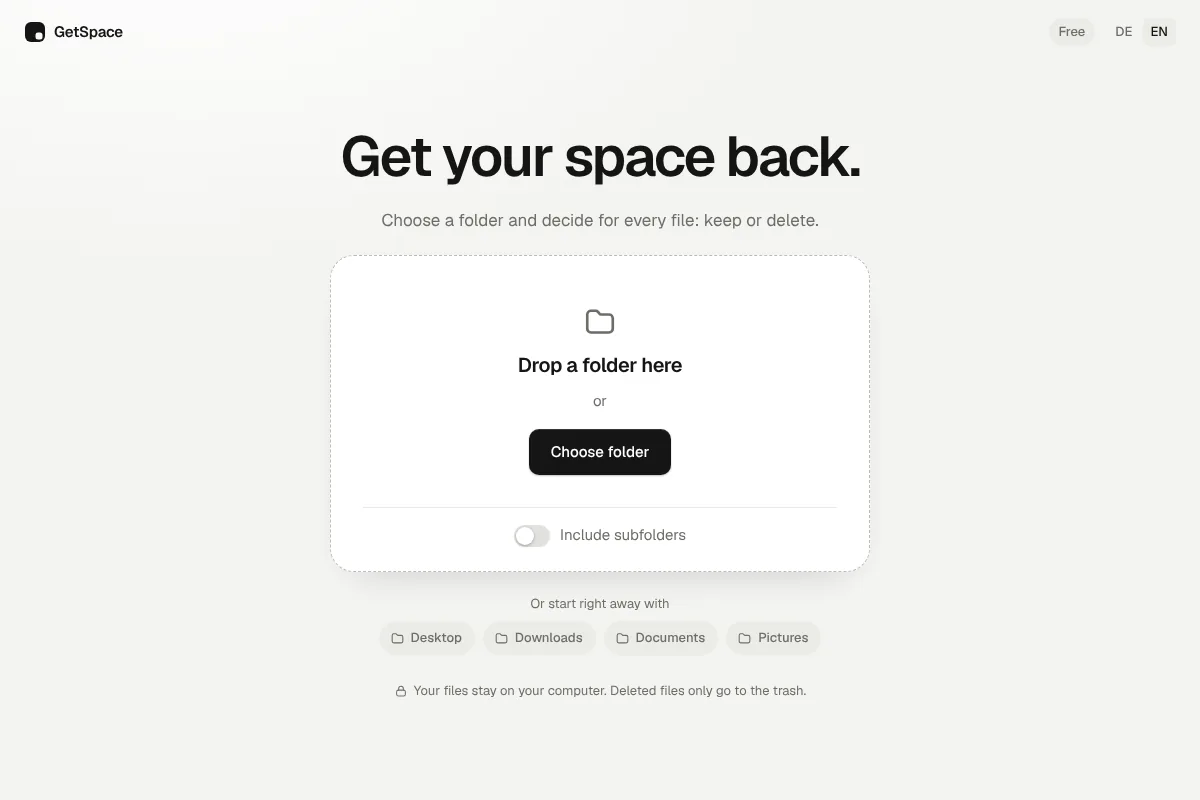
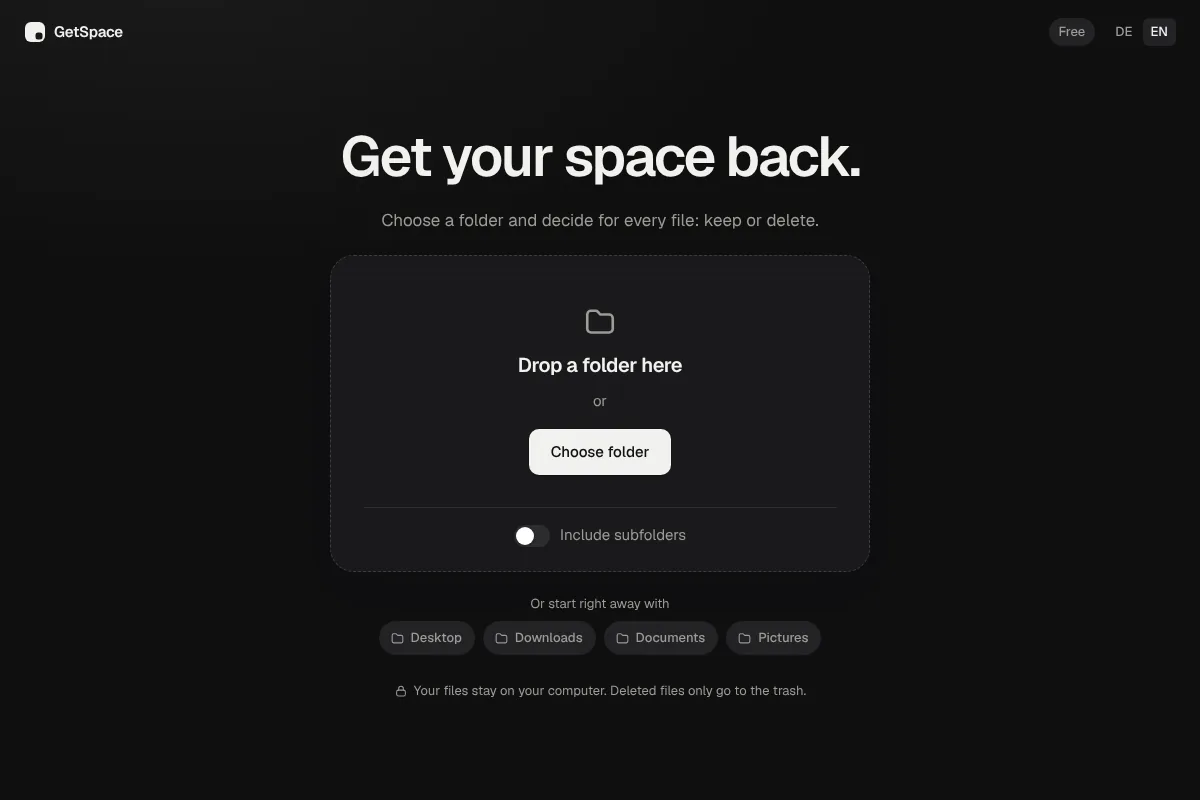
Choose a folder
Drag a folder into the window or pick one. Desktop, Downloads, Photos: you decide.
- 2
Swipe
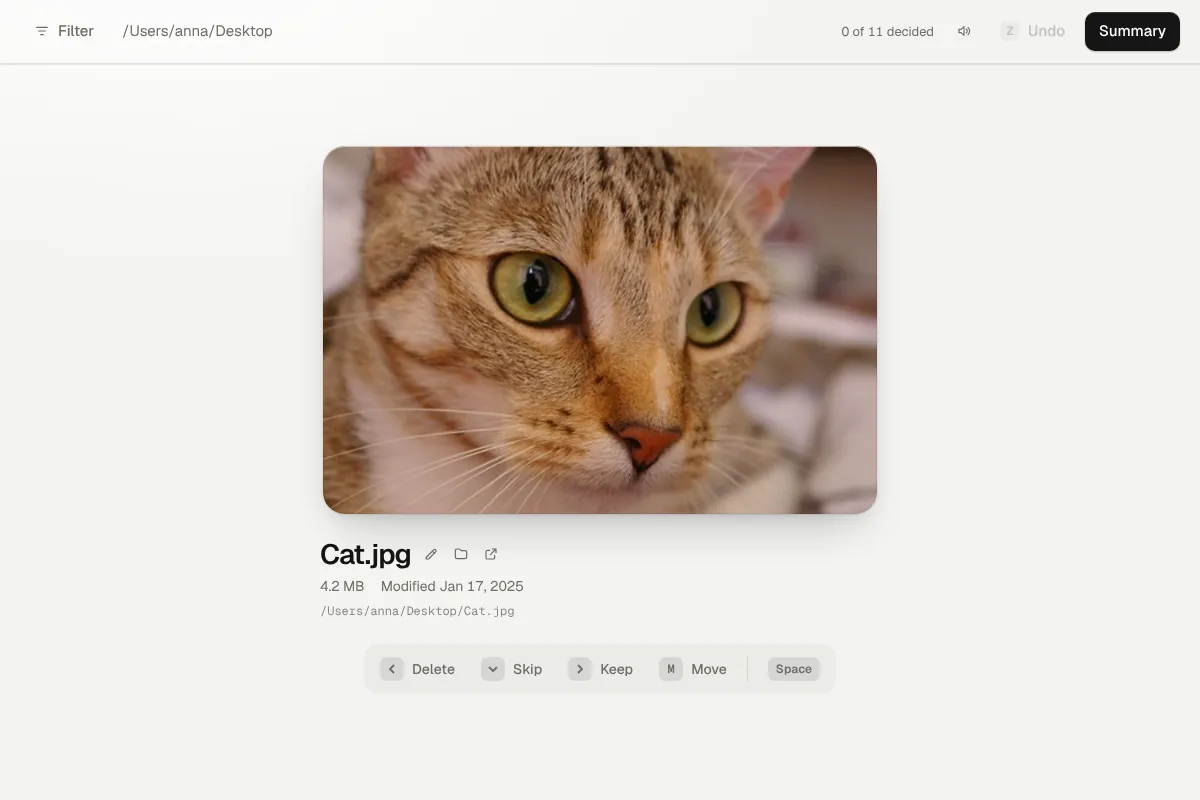
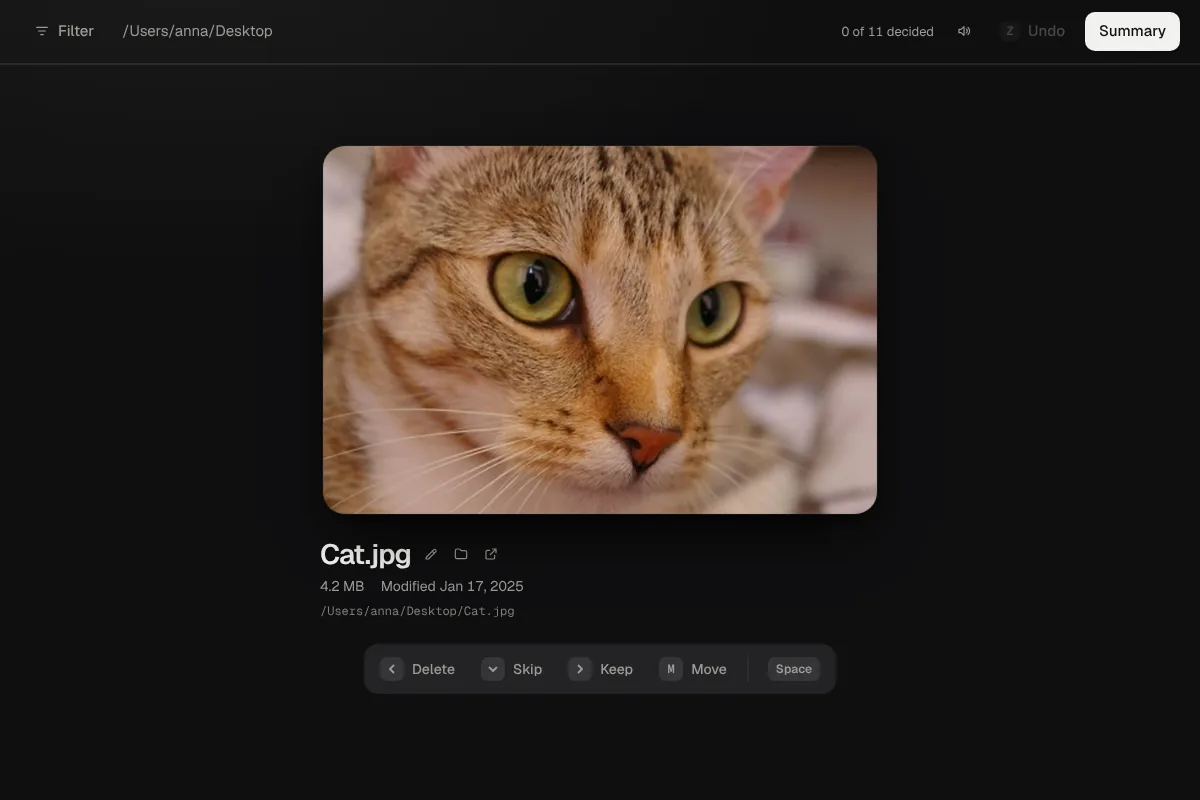
Every file appears as a large card. Left to delete, right to keep, down to skip.
- 3
Review
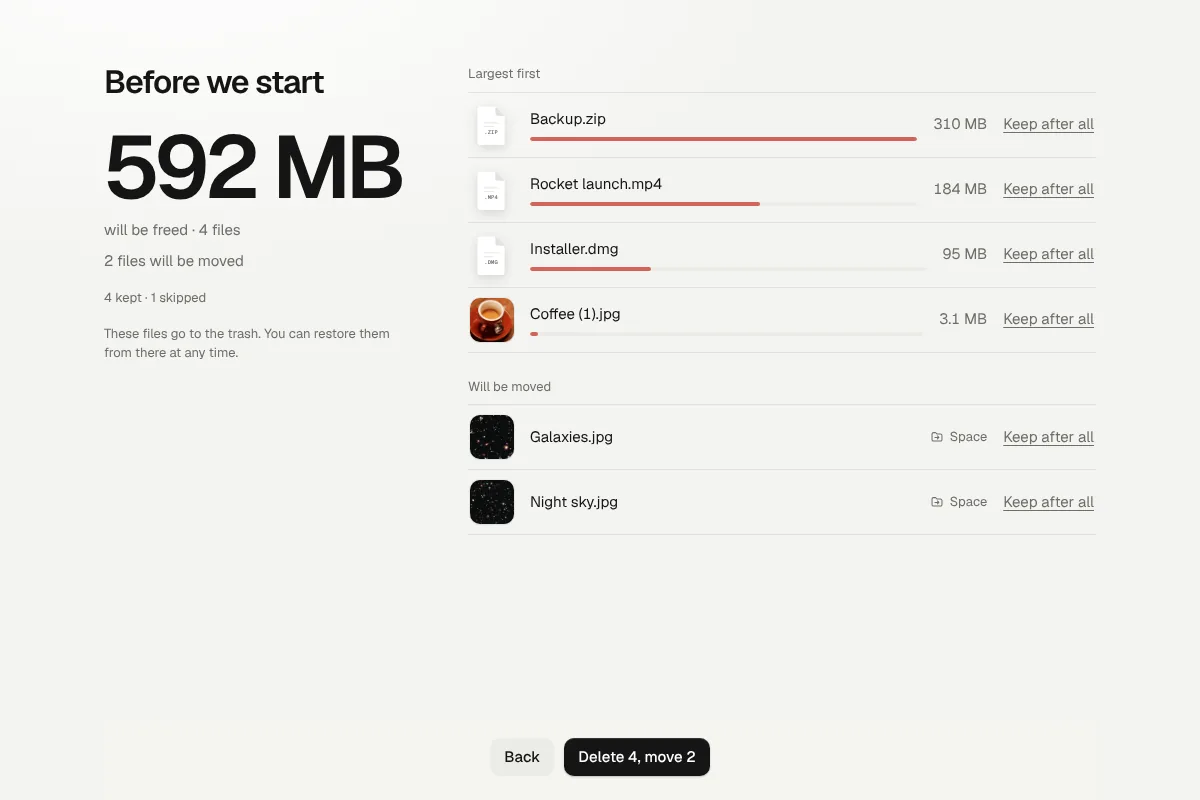
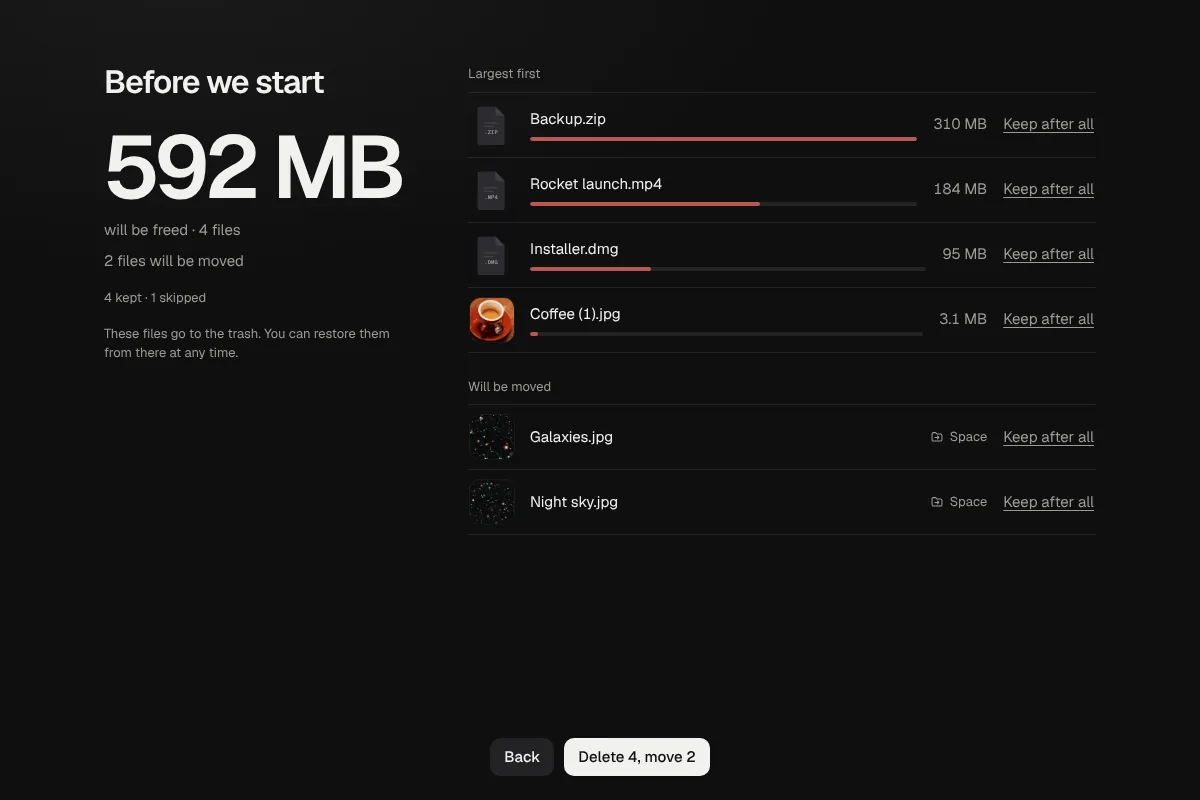
Before anything is deleted you see it all at a glance, largest files first. You can bring any of them back.
- 4
Done
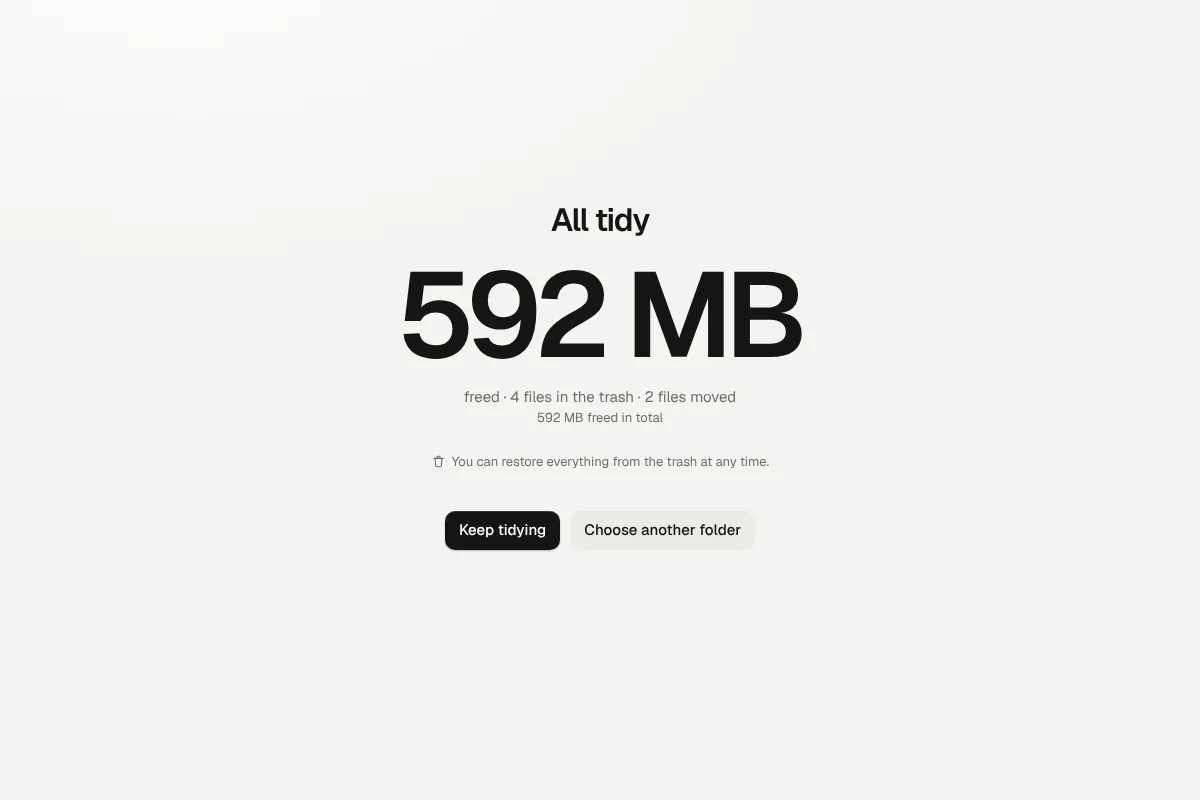
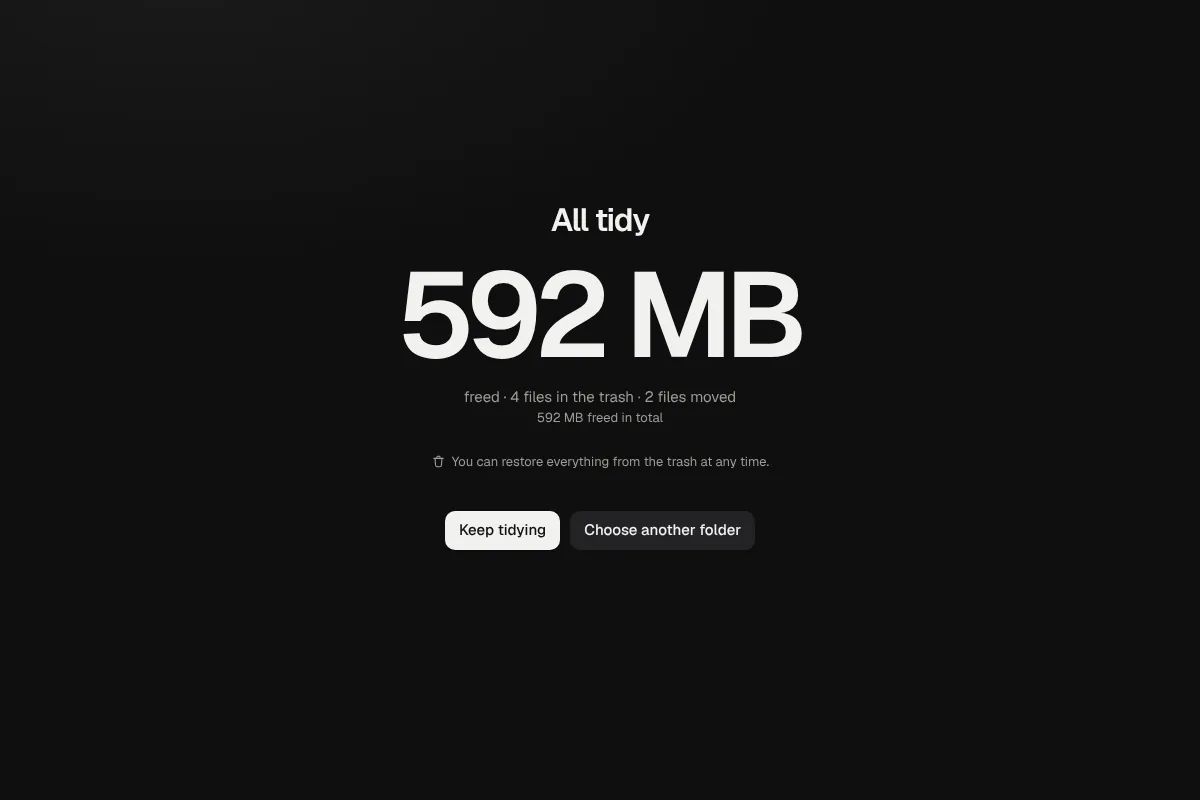
Everything goes to the trash, and you see how much space you freed.
See every step in action.
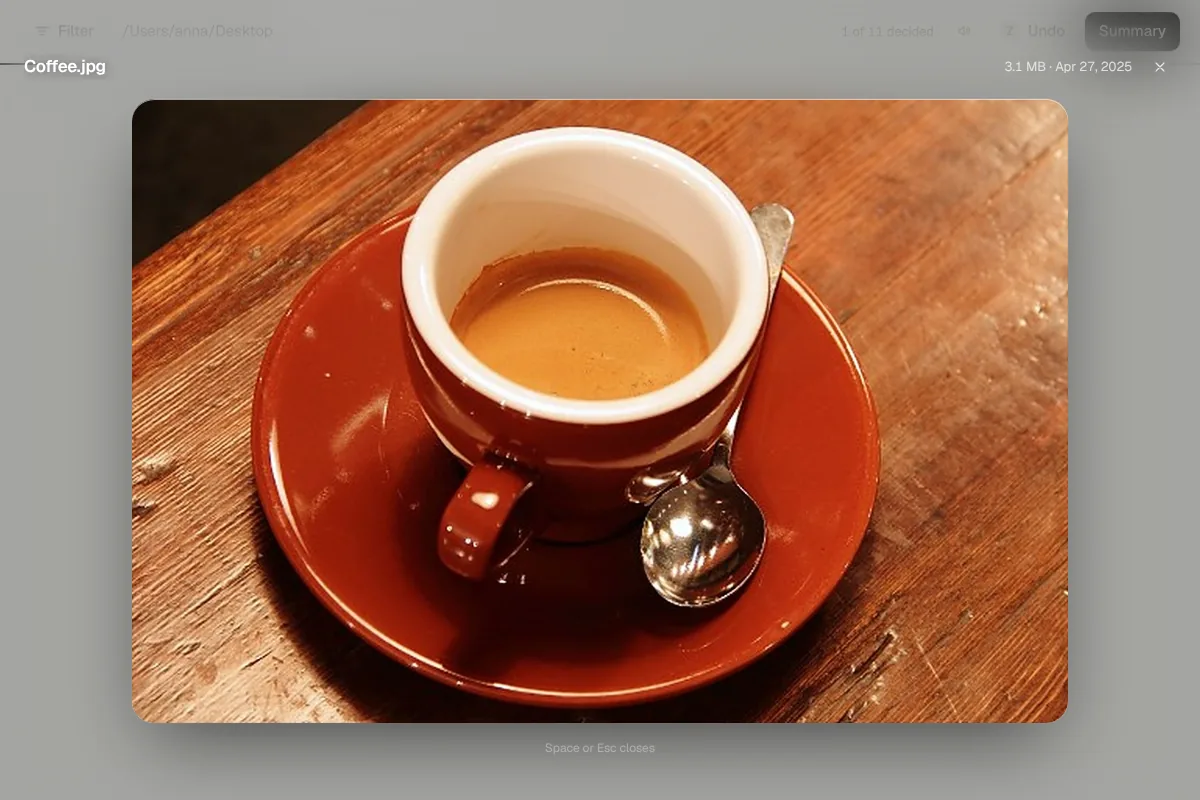
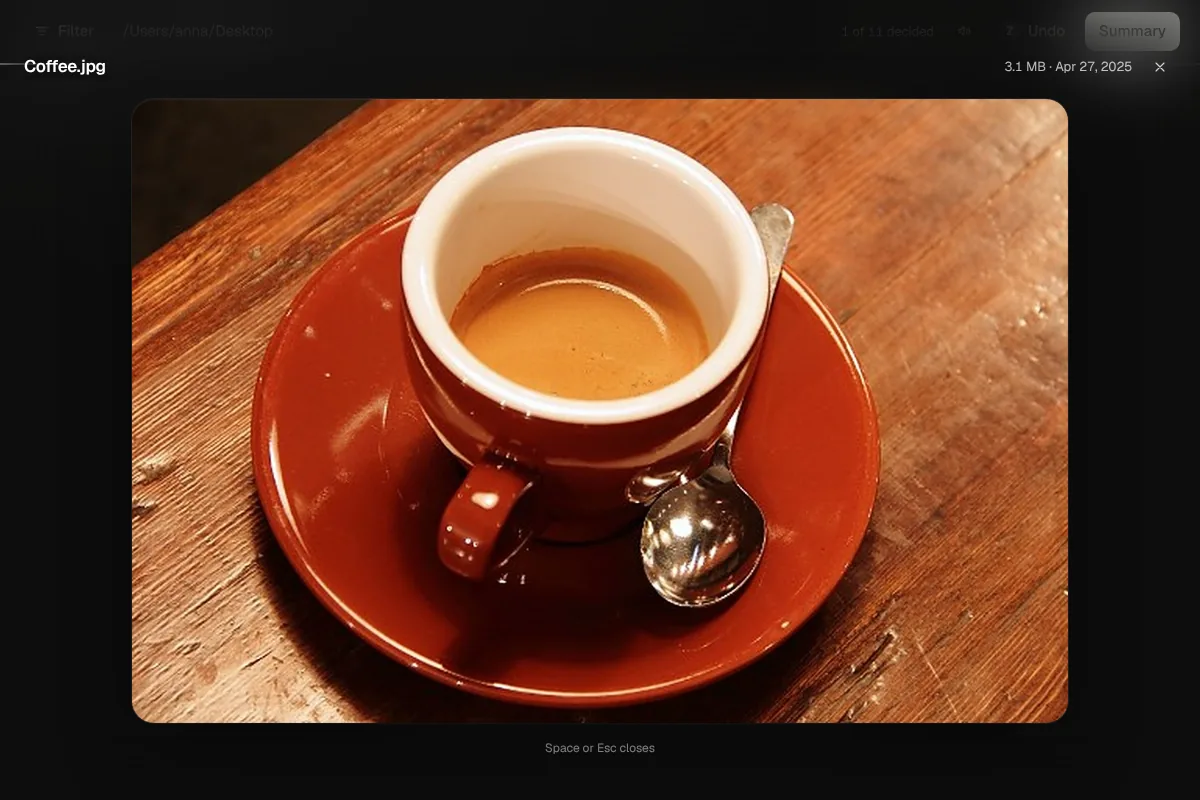
Large preview
Press the space bar and the document fills the window. Images, PDFs, text and videos, without opening them.
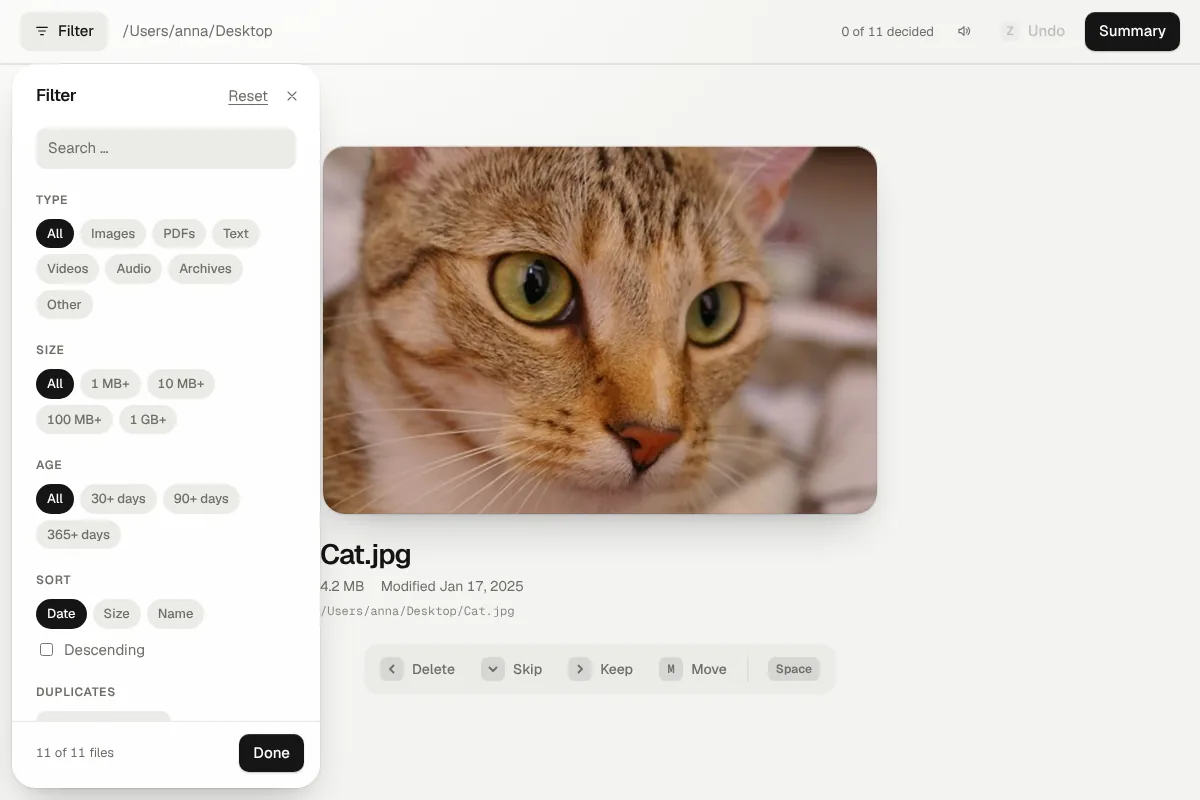
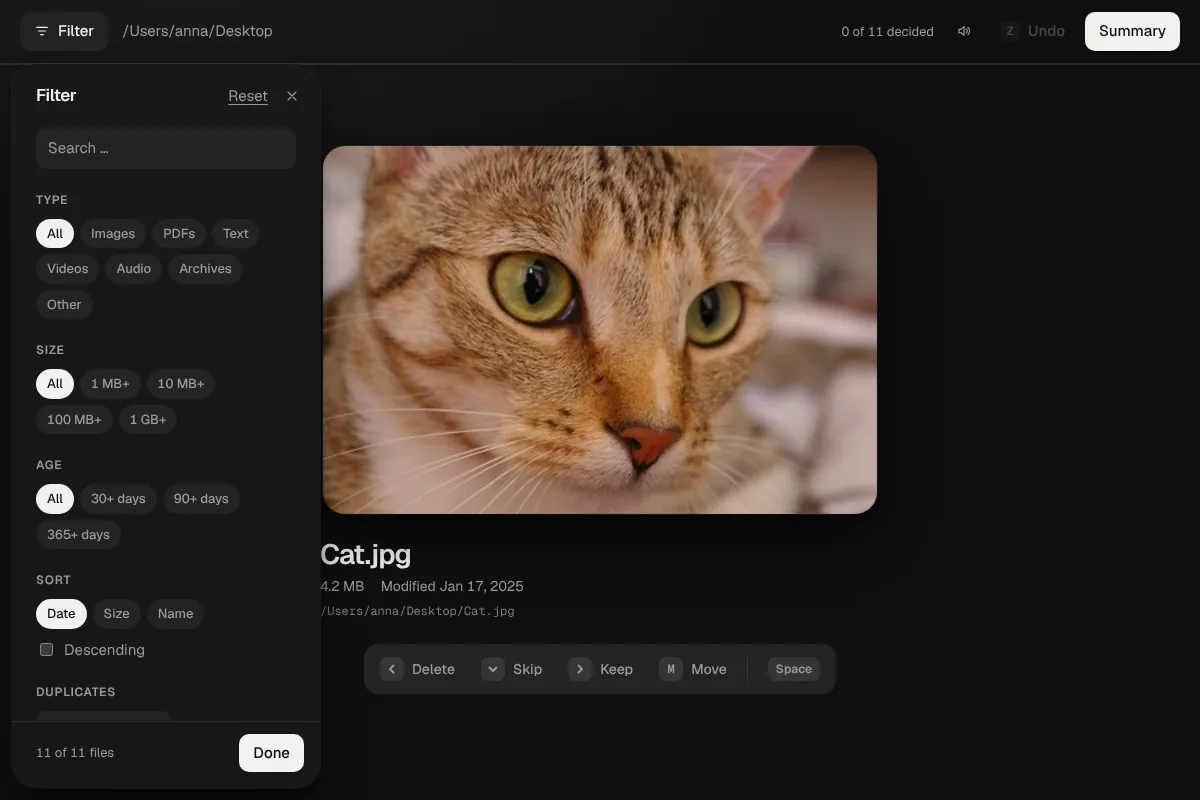
Filters
By type, size, age or name. Finds duplicate files too.
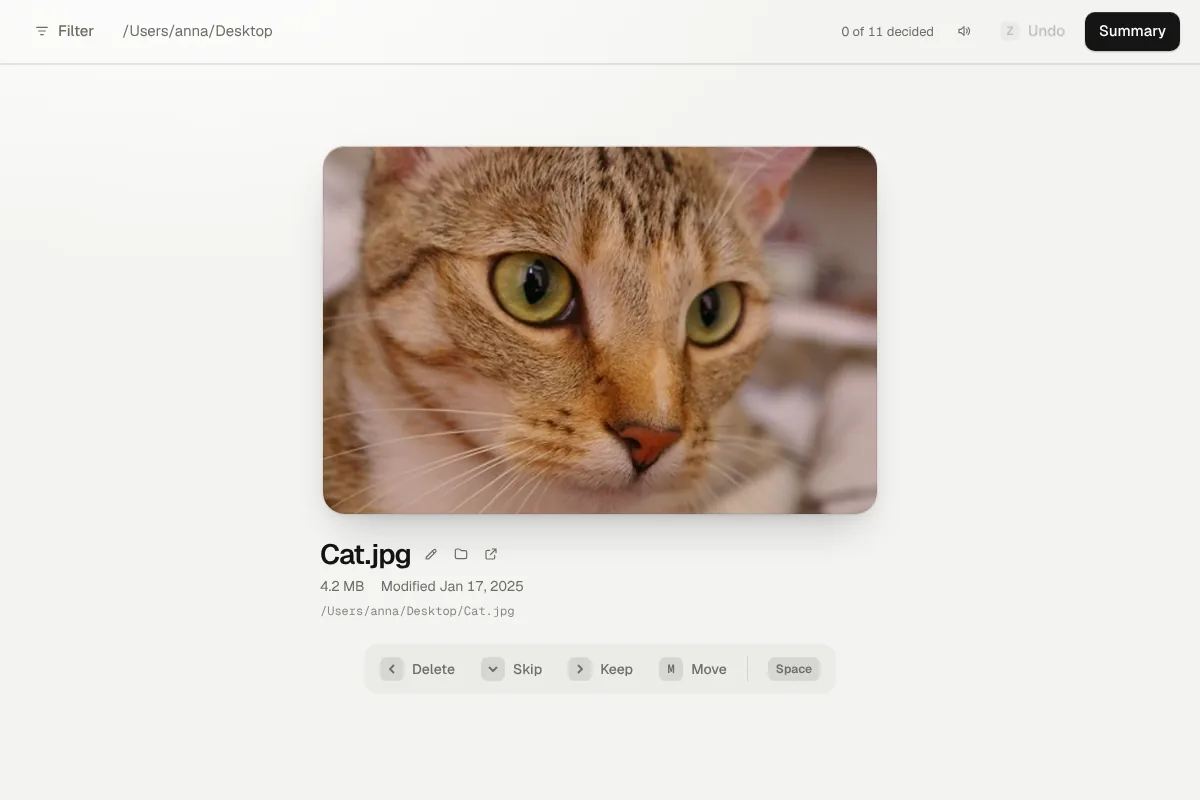
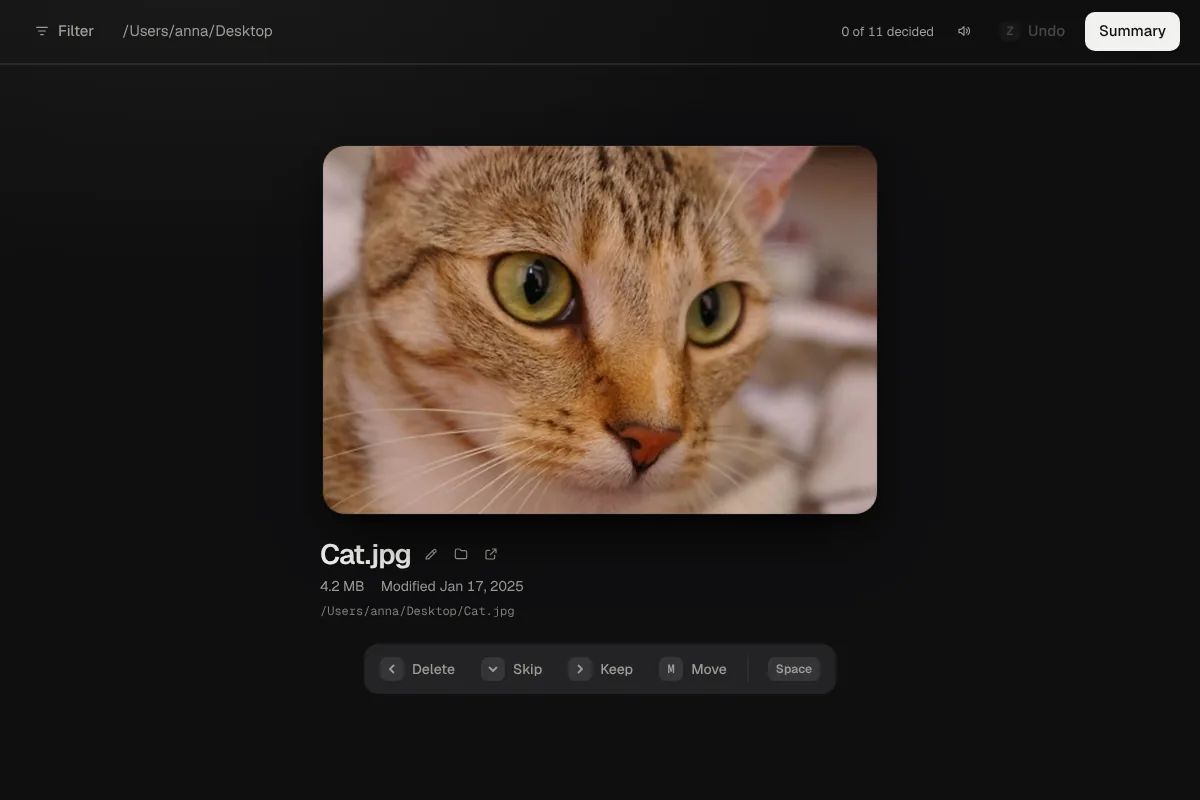
Show in folder
S shows the file in Finder or Explorer, O opens it with the default app. GetSpace never opens programs or scripts.
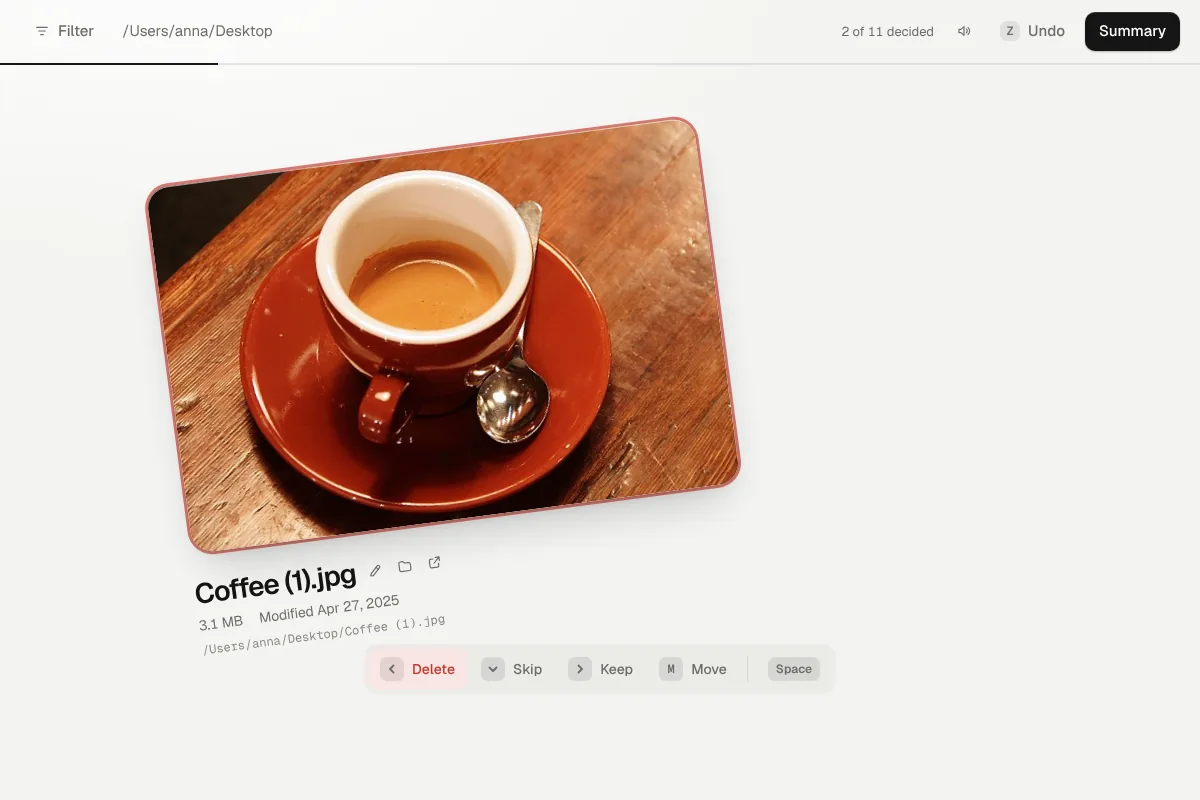
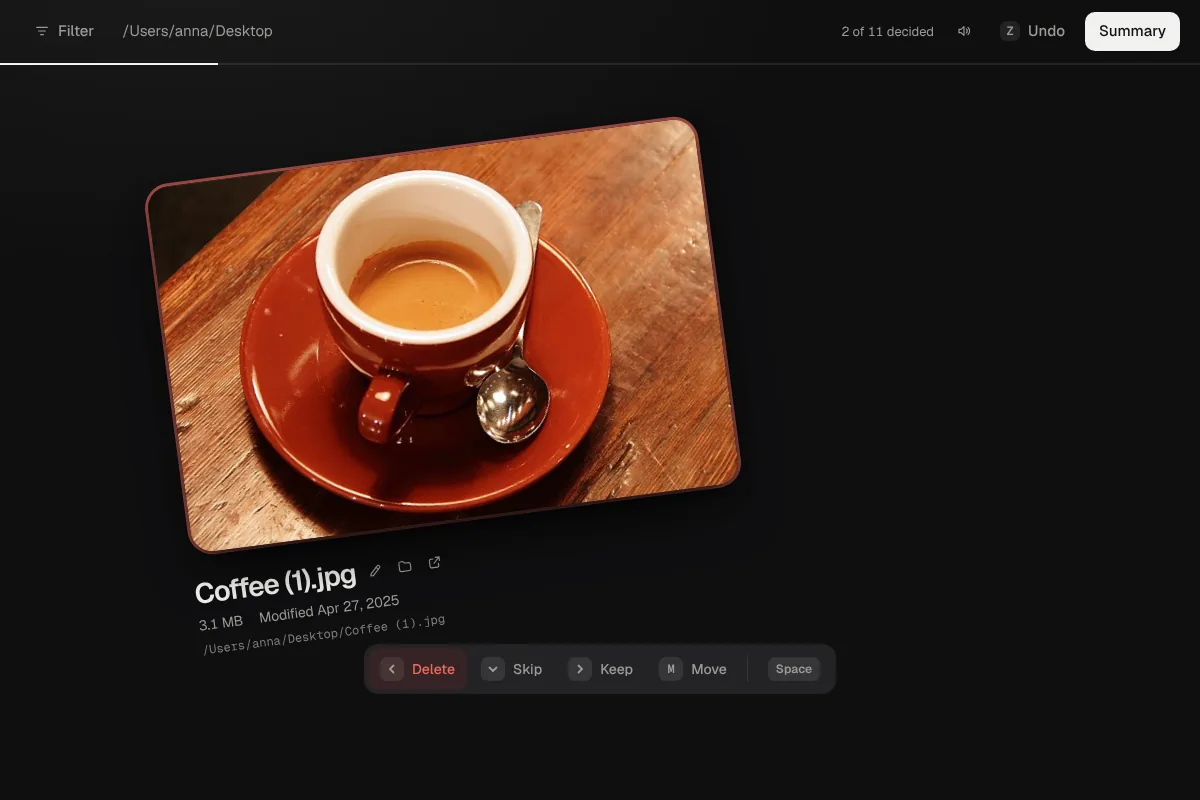
Keep or delete
Left arrow deletes, right keeps, down skips. Or drag the card with the mouse.
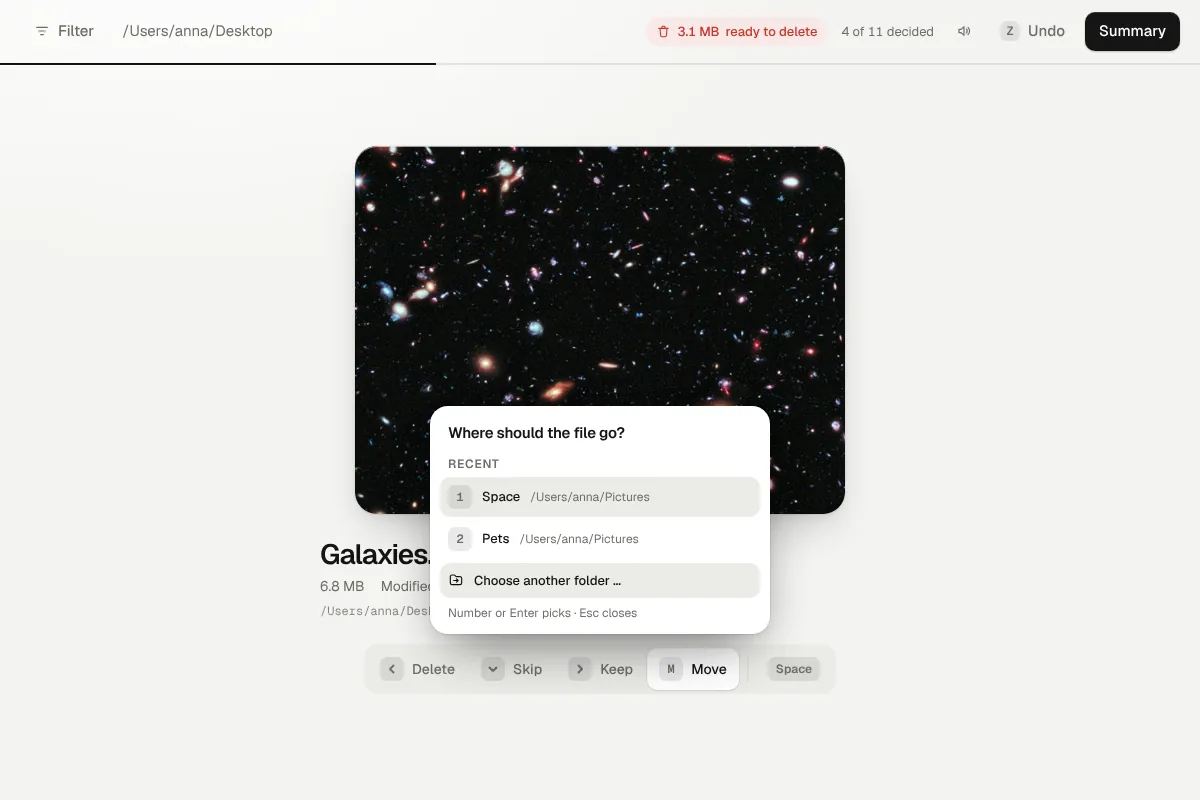
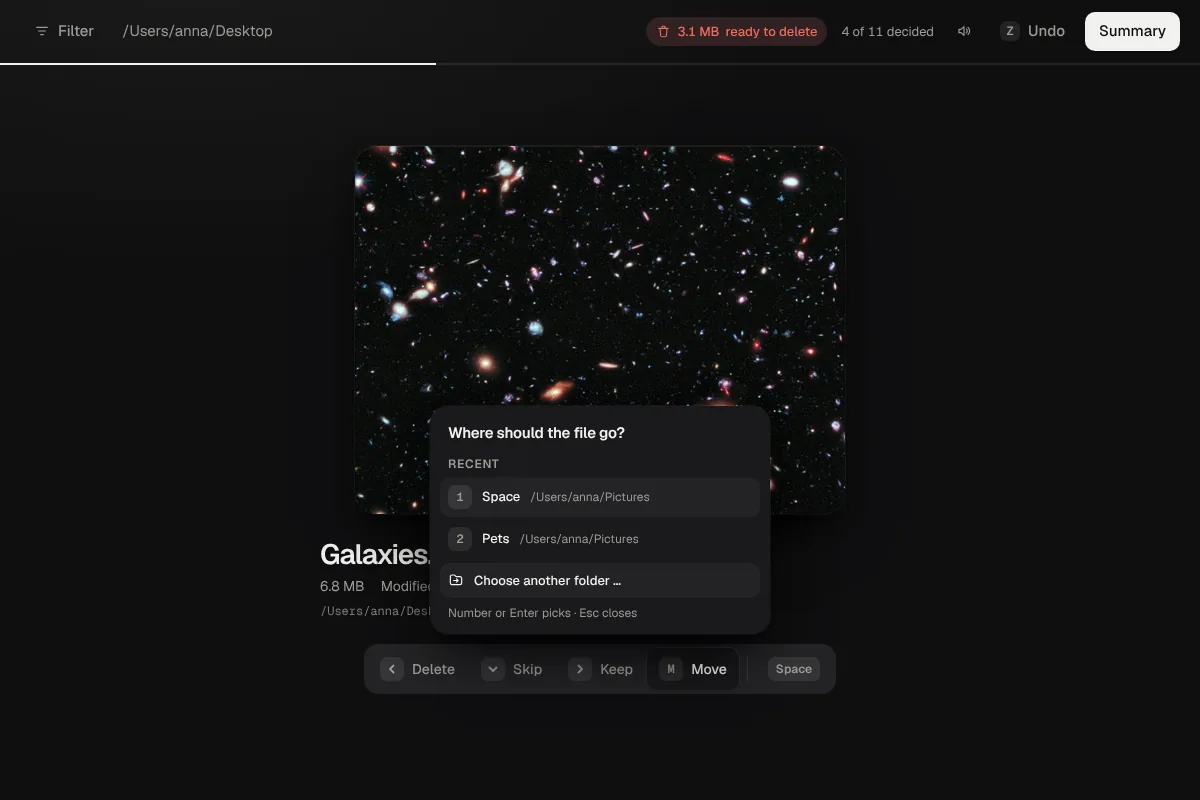
Move
Press M and choose a folder. Your recent folders wait with a number. Nothing moves until you confirm.
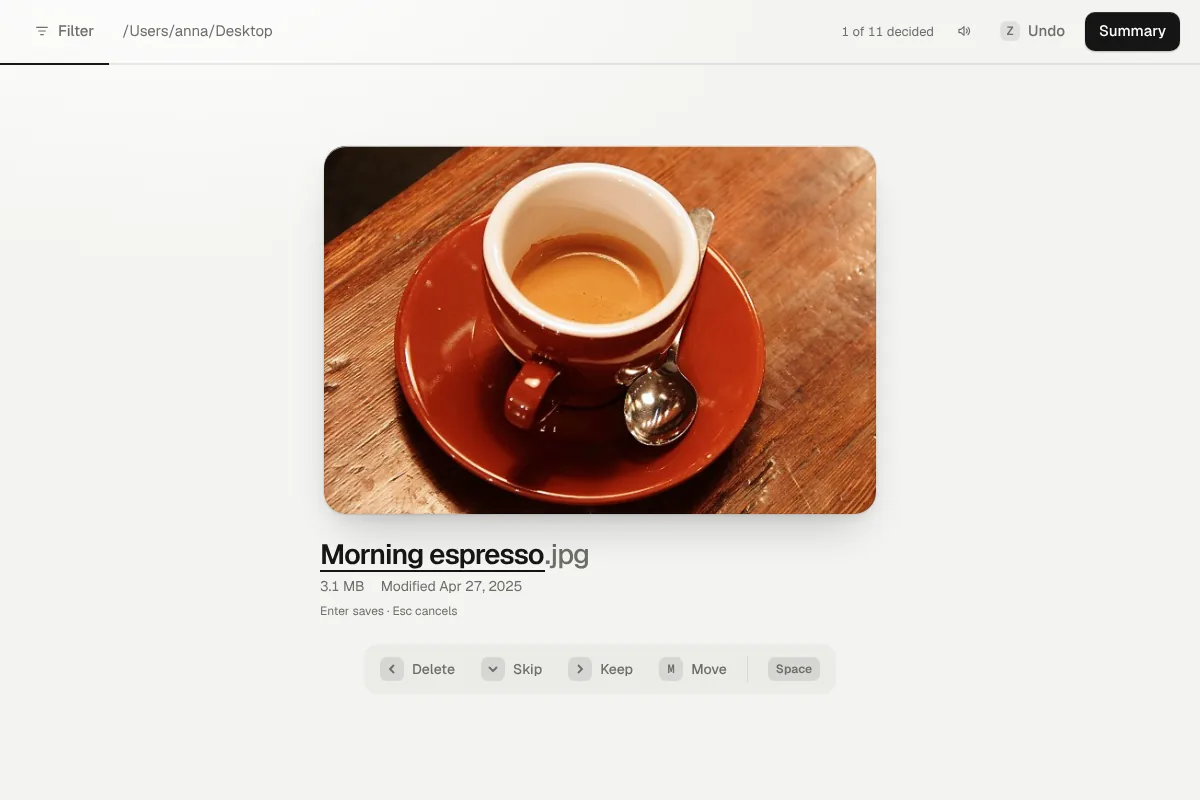
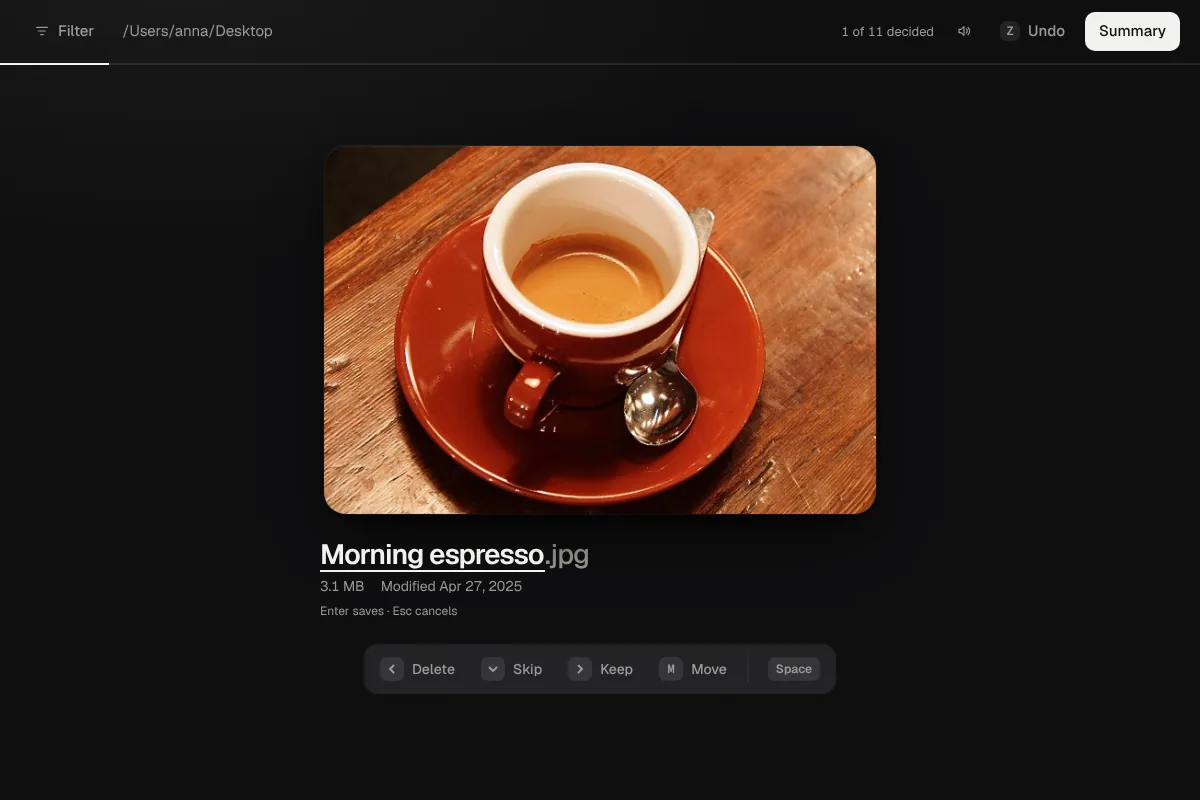
Rename
Press R, type the new name, Enter. The extension stays, nothing is overwritten, and Z takes it back.
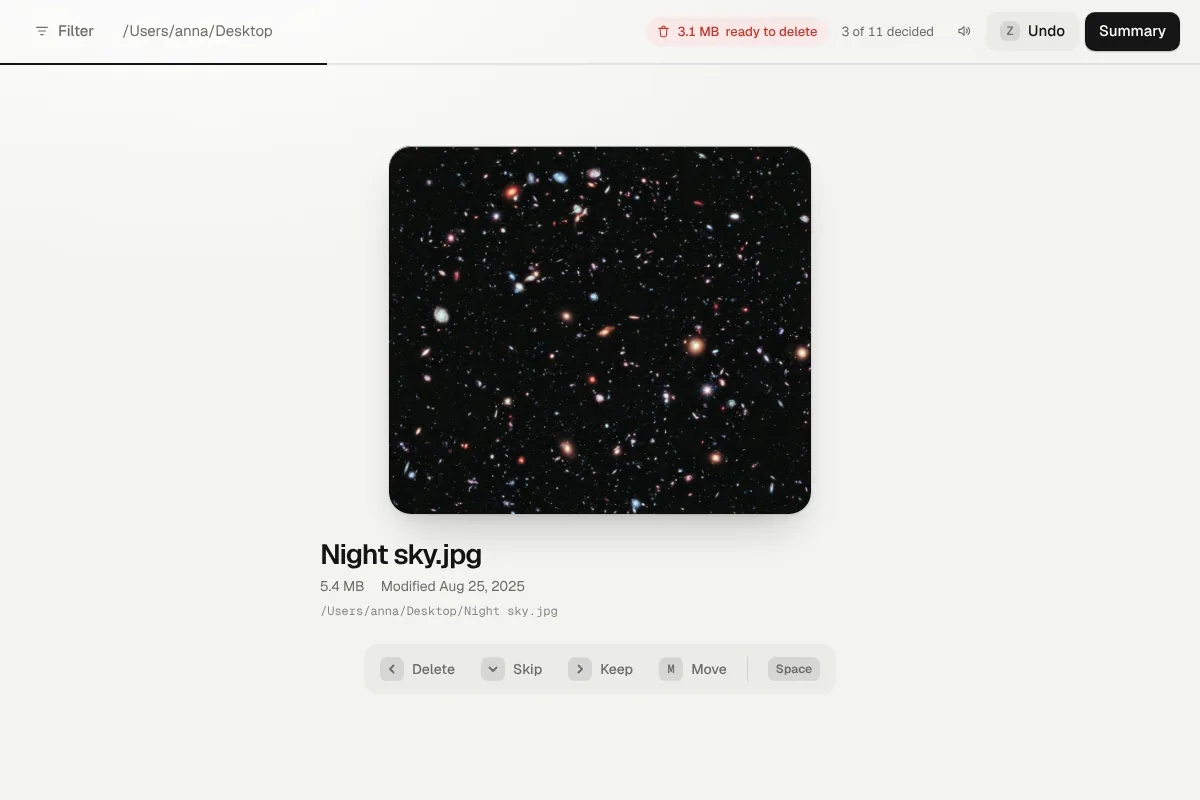
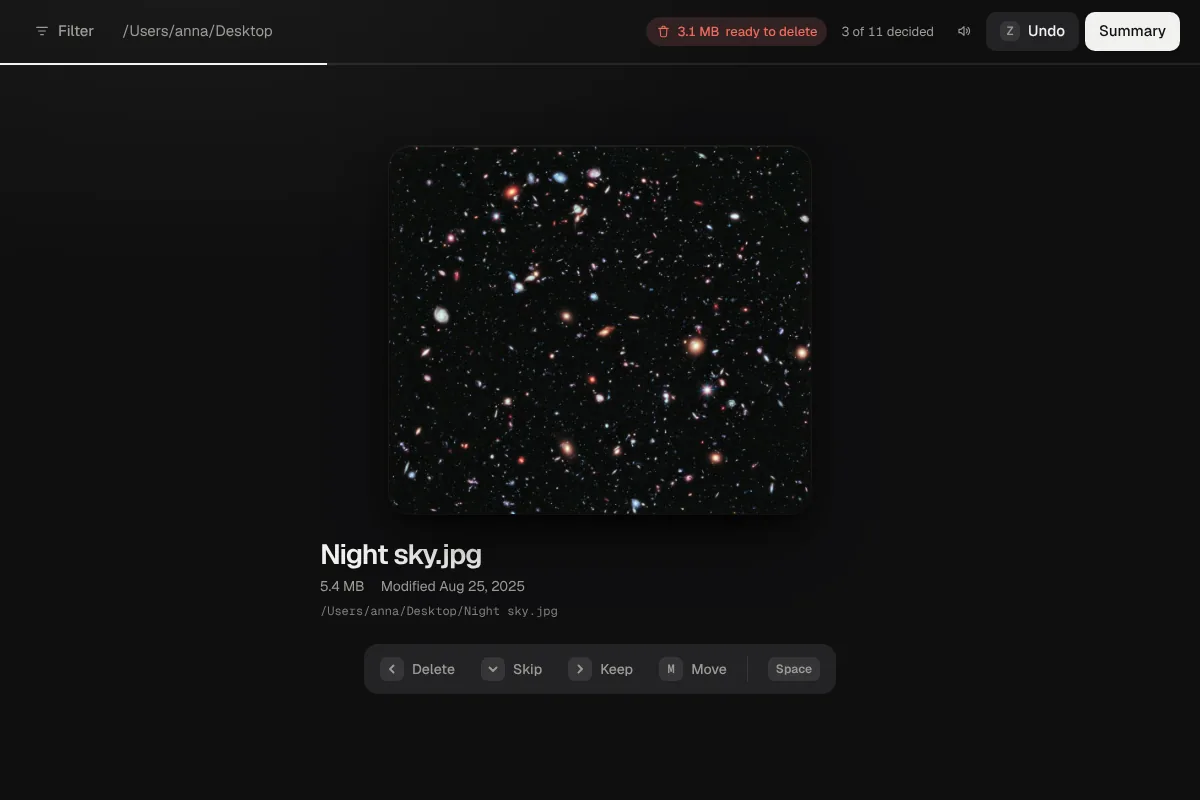
Undo
Z undoes the last step, a rename included. Nothing is deleted until you have seen the summary.
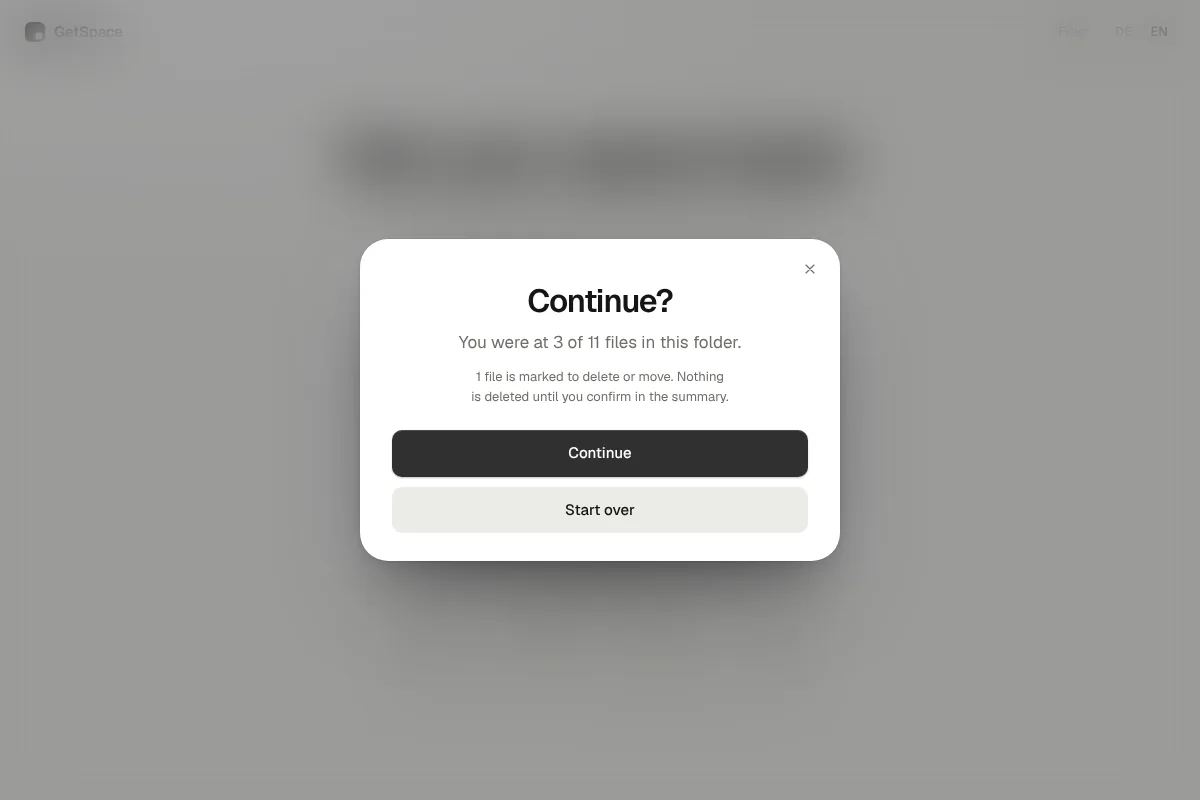
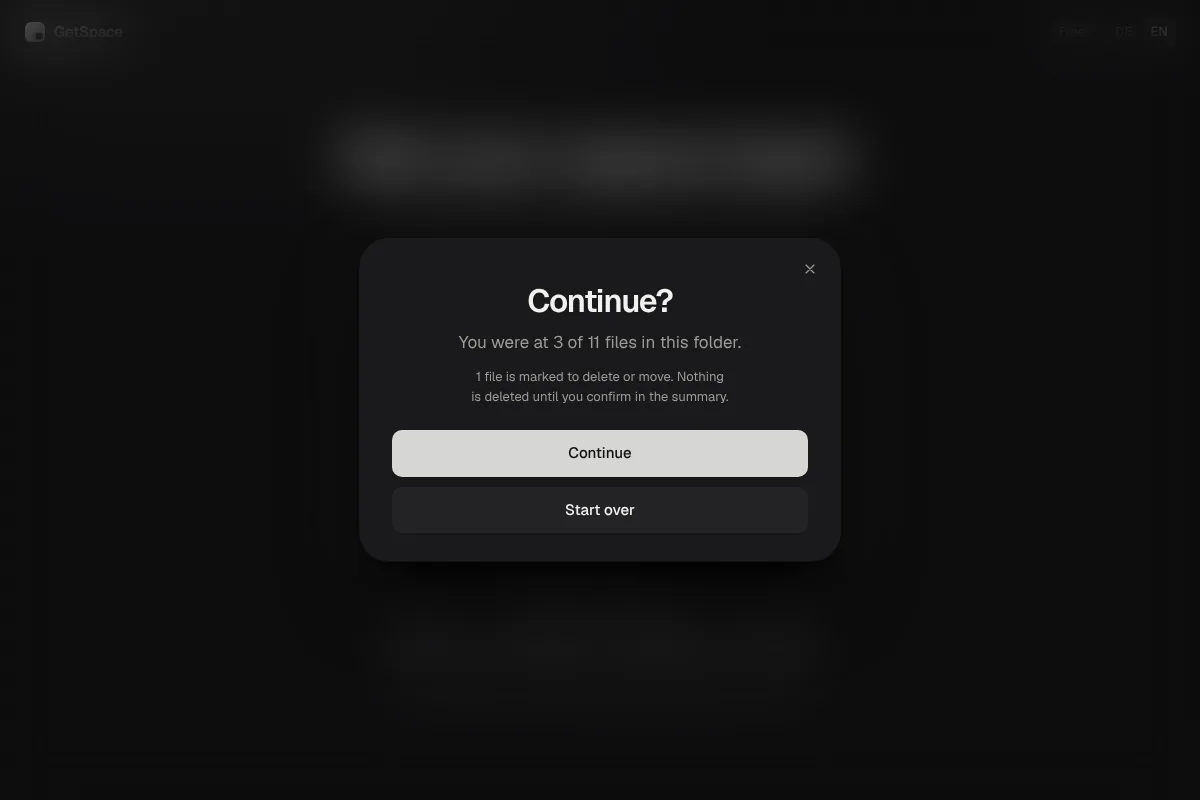
Pick up where you left off
5,000 files don’t fit in one sitting. Next time GetSpace asks whether to continue where you stopped.
Always the trash
Nothing is deleted for good. What you delete sits in your system’s trash.
Your files never leave your computer.
GetSpace works entirely on your computer. There is no account, no cloud and no tracking. Only if you enter a license key, that key is sent to our license server to check it, never files or file names.
Pay once, no subscription
Start free. When you want to tidy up more, unlock unlimited.
Free
€0
forever
- 50 files per day
- All features
- Mac and Windows
- −50%
Pro
€19.99€9.99
one-time · 1 device
50% off in the cart
- Tidy without limits
- All features
- License key by email
- −50%
Family
€49.99€24.99
one-time · 3 devices
50% off in the cart
- Tidy without limits
- Works on 3 devices
- License key by email
The discount is already in the purchase link, there is nothing to enter. After that the regular prices apply.
The payment provider calculates taxes at checkout.
Questions and answers
Is it safe? What if I delete the wrong thing?
GetSpace always moves files to your system’s trash, never deletes them for good. Before that you see everything in a summary and can bring back any file.
What happens to my files?
They stay on your computer. GetSpace uploads nothing and needs no account.
Why does my system show a warning when I open it?
GetSpace is new and the apps are not yet signed by Apple and Microsoft. How to click the warning away is explained on the “Install” page. You only need to do it the first time.
How do I unlock Pro?
After buying you get a license key by email. In GetSpace, click “Free” at the top right of the start page, choose “I already have a key” and enter the key.
What if I change computers?
In GetSpace you can release the device and then enter the key on the new computer. Pro covers one device, Family three.
How many files can I look at for free?
50 files per day. The next day you can continue for free, or you unlock unlimited.
How does the launch discount work?
The first 100 purchases get 50% off, for Pro and for Family. The discount is already in the purchase link and is taken off in the cart, there is nothing to enter. Once the 100 purchases are gone, the regular prices apply.
How do I reach support?
Write to us at support@getspace.site.
Ready for more space?
Download GetSpace and tidy up your first folder.
GetSpace is a program for Mac and Windows and doesn’t run on phones. Send yourself the link and download it on your computer.
Email me the linkStart free · 50 files per day · No account